Your desk keyboard for your monitors. Your couch keyboard for your TV. DisplayPilot switches your saved DisplayMagician layout when you use the input device assigned to it.
Download for Windows x64 · View source on GitHub
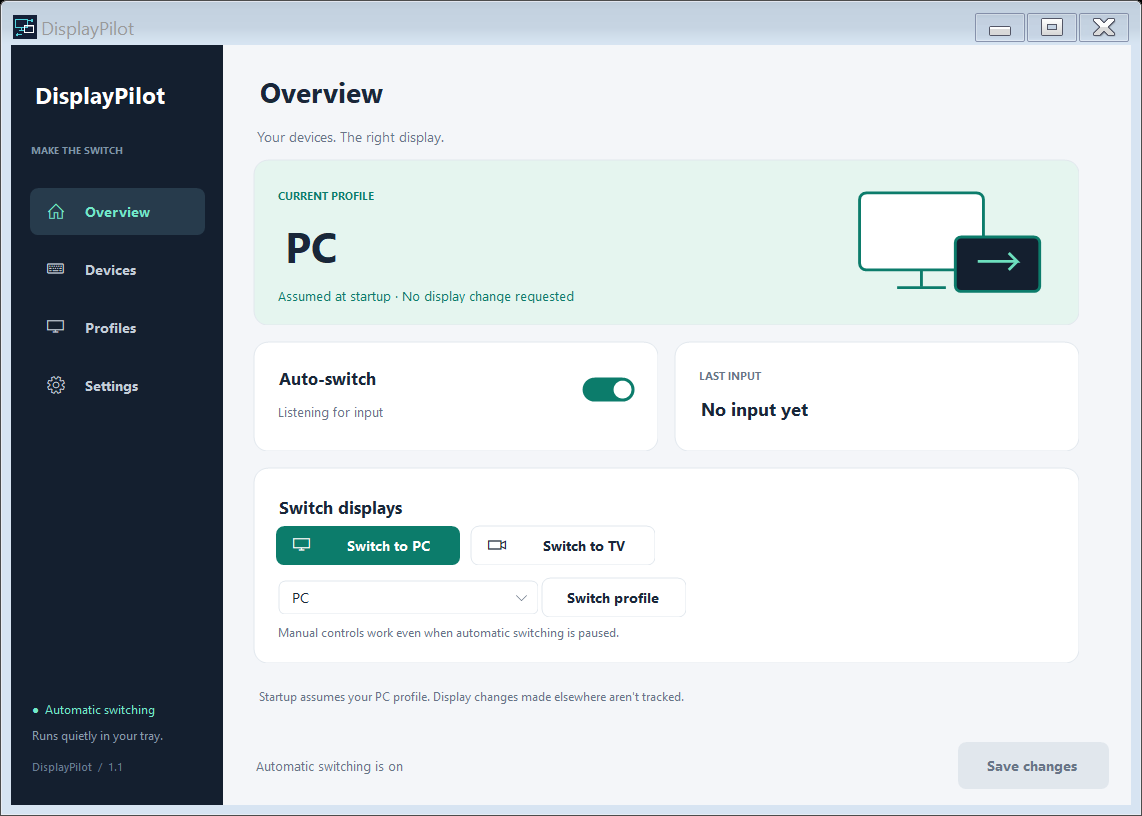
One device, the right display
Assign as many keyboards and mice as you need to any saved profile. Several devices can share a profile, and Ignore leaves other devices out of automatic switching.
- Overview: see the current assumed profile, last input, and automatic-switch status. Switch profiles manually when you need to.
- Devices: search attached devices, give them friendly names, and choose their target profiles. Expand Device details only when you need identifiers.
- Profiles: detect names from DisplayMagician’s saved profiles or enter an exact name yourself.
- Settings: choose the DisplayMagician installation folder, set a switching cooldown, and choose whether to start with Windows or minimize to the tray.
- Tray controls: open DisplayPilot, pause automatic switching, switch to PC or TV, or exit.
Get started
- Install DisplayMagician from its official releases page and save the display layouts you want to use.
- Download DisplayPilot-Setup.exe from the latest DisplayPilot release. The installer includes the .NET runtime. A portable ZIP is also available.
- Open Settings → Choose folder and select the DisplayMagician installation folder. Use Open DisplayMagician if you need to configure a layout.
- Open Profiles → Detect profiles, then save. Detection reads saved profile names without querying or changing the active layout.
- Open Devices, assign your keyboards and mice to profiles, and save. New devices start on Ignore.
DisplayPilot assumes the configured PC profile when it starts. It does not query the active profile or apply a display layout at startup, avoiding an unnecessary switch on the first desk input. Changes made outside DisplayPilot are not reflected in its profile status.
Local settings, simple installation
Device assignments and preferences are stored in %LOCALAPPDATA%\DisplayPilot\settings.json. Personal settings are not included in the source repository or release downloads. Closing the window keeps DisplayPilot running in the tray; use Exit to stop it.
The installer provides a Start Menu entry and optional desktop and Windows-startup options. It is currently unsigned. Exit any older display-switching utility before running DisplayPilot so the two applications do not compete.
Controller support
HID devices can be detected and assigned in preparation for controller support. Controller-triggered switching is not enabled in this version. Keyboard and mouse raw input are the active switching sources; Xbox controllers exposed only through XInput may not appear.
Build and releases
Built with C#, .NET 10, Windows Forms, and Windows Raw Input. Version tags trigger automated regression checks, a self-contained Windows x64 build, and an Inno Setup installer. Each release includes a portable ZIP and SHA-256 checksums.